Improved BACS Configurator

08 September 2026

Since the launch of our first BACS Calculator in 2021, our product palette has become increasingly broad and complex. To improve our partners’ purchasing experience and our own quote-response time, we have set out to provide you with as much help as possible.

Our goal is to make our quoting process as transparent and straightforward as possible, so you are able to get a quick overview of the products needed for your project.

We have gathered feedback from multiple customers who have used the configurator and have adapted it based on their feedback. We are always trying to improve our service and your experience, so if you have feedback or a feature request for the configurator that would help you in your quoting process, please contact us at sales@generex.de. We are eager to shape the configurator according to your needs!

Open Configurator

To use the configurator to its full potential, it might help to start with an understanding of what it is, and what it does. Below, you can find a description of the features and functions of the configurator and which options have which consequences.
Personal Pricing

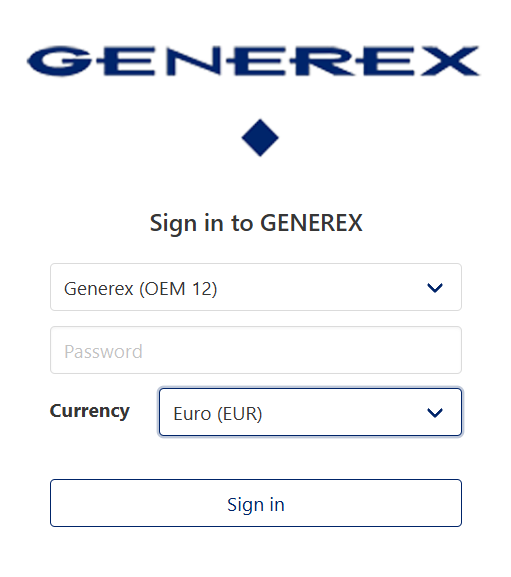
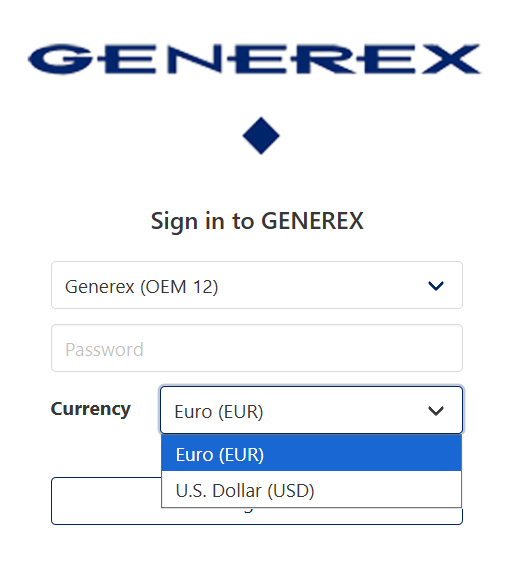
If you are a reseller or OEM partner with a personalized price list, you can access your individual pricing through your OEM account.

To log in, click the account icon in the top-right corner of the GENEREX Website, select your OEM number or account, and enter your password.

If you are logged in and all prices are displayed as €0 / $0, your account most likely uses a special pricing structure that has not yet been implemented in the Configurator. If you would like to use your individual pricing in the Configurator, please contact us at sales@generex.de, and we will add your price list.

If you notice any discrepancy between the prices shown in the Configurator and the prices stated in an official quotation or PDF provided by GENEREX, please contact us. We will review and update the relevant pricing information as soon as possible.

Language and Currency

To change the language, use the language selector in the top navigation bar to switch between English and German.

When selecting a currency, please choose the option that corresponds to your region. GENEREX generally uses EUR for Europe and USD for North America. Please note that prices may vary between currencies due to differences in manufacturing, distribution, and regional pricing structures.

Customers located in the United States, Canada, or Mexico should select USD. Customers located outside of North America should select EUR.

Start

Multiple Systems

How many BACS systems would you like to configure?

This variable applies a simple multiplier to the configuration and adds the corresponding quantities to the Bill of Materials (BOM). Any applicable volume-based pricing is taken into account automatically.

A system is defined by a single BACS Webmanager. Therefore, each UPS or charger requires its own dedicated Webmanager.

Multiple systems can only be configured simultaneously if all systems are identical. If the systems differ in any aspect of their configuration, each system must be configured separately.

Alternatively, you can create a basic configuration and send it to sales@generex.de together with the required modifications. We will then assist you in completing the configuration.

Battery Cabinet

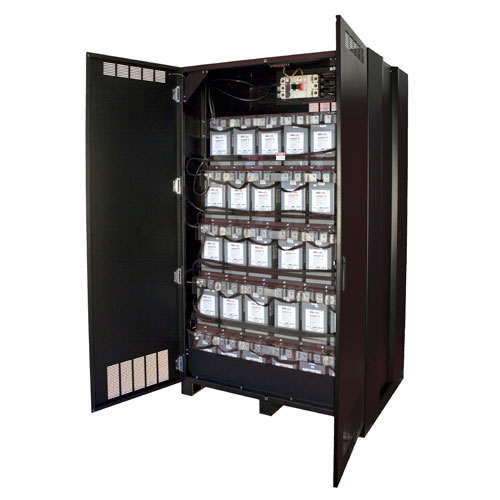
Is the BACS installation inside a Battery Cabinet?

Battery cabinets are enclosed battery installations in which the batteries are housed within a dedicated cabinet. They are primarily used in the US market and should not be confused with CC Cabinets.

Batteries

Nominal Voltage

The nominal voltage of the battery declares the type of module needed for Battery monitoring/ management

2V – 4V = C44

6V = C30

12V - 16V = C24

Amount of Batteries

Enter the total amount of batteries per system:

This variable defines the overall size of your system and serves as the basis for calculating the required number of BACS modules, cables, Faston connectors, splitters, and rack dimensions.

A system is defined by a single BACS Webmanager.

Enter the total number of batteries that will be monitored by the BACS Webmanager, including all batteries across every string within the system.

Battery Information

Enter the manufacturer's name of the batteries:

Enter the name of the battery model:

Enter a link to the battery's specification:

While these fields are optional, we strongly recommend providing the requested information. For a formal quotation, these details are required to verify that the selected configuration is complete, technically compatible, and suitable for the intended system.

Wires

Faston Package Amounts

For rack-type installations, Faston adapters are supplied exclusively in packages of 100 or 500 pieces. For cabinet-type installations, the available package sizes may vary.

Measuring Cable Length

What length does the measuring cable need to be to connect the module to the battery terminal?

This variable defines the required measuring cable length for connecting the BACS module to both battery terminals while maintaining a clean and properly routed installation.

Please enter the estimated cable length required to connect the module to both terminals along the intended cable path.

Installation Dimensions

The Installation steps use the dimensions and layout of the selected rack or cabinet to determine the appropriate BACS bus cable lengths required for the Bill of Materials (BOM).

The number of levels and rows, together with the total number of batteries, is used to calculate the approximate number of batteries per row. The calculation is performed as follows:

Due to the nature of this calculation, not every possible system layout can be represented with complete accuracy. In configurations with multiple rows or irregular battery distributions, the calculated quantity may result in a small number of additional bus cables being included in the BOM.

This generally has only a minor impact, as the Configurator intentionally includes five additional 40 cm bus cables in every configuration. These serve as spare cables and provide a reserve in case of damage, loss, or other unforeseen requirements during installation.

Webmanager

Cabinet HMI and Modbus

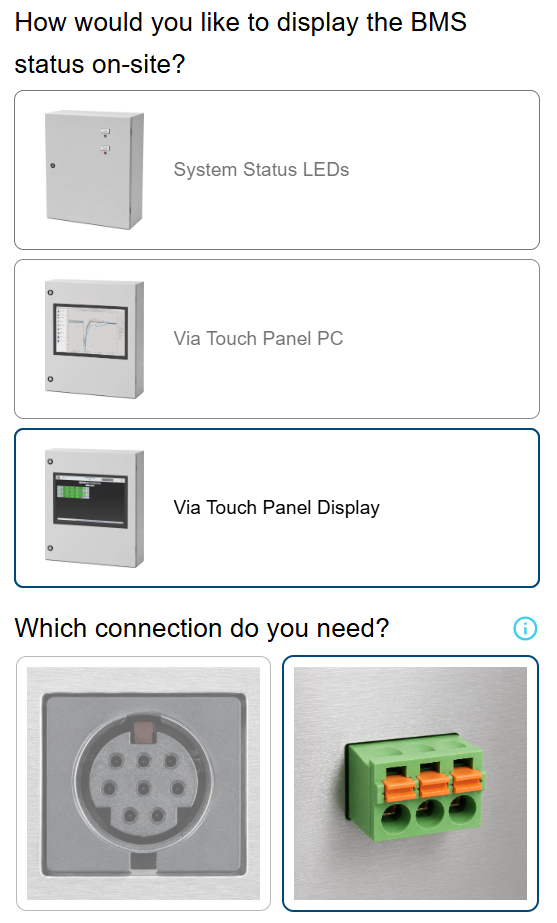
The HMI Touch Display communicates with the Webmanager via a Modbus RS485 connection. When the HMI Display is selected, the Configurator therefore automatically configures the Webmanager with the required Modbus interface.

Please note that this Modbus interface is dedicated to communication with the HMI Display. As the corresponding port is occupied by the display, it is not available for connecting an additional external Modbus device.

Multiple Systems in One Cabinet

If you selected multiple systems in the Start step and chose a cabinet-mounted Webmanager installation, the Configurator will ask whether the systems should be combined within a single CC cabinet or installed in separate CC1 cabinets.

For example, a configuration with 8 systems can be implemented either as 1 × CC8 cabinet or as 8 × CC1 cabinets.

Accessories

Current Sensors

How many sensors do you need?

The current sensors can be used either to monitor the current of individual battery strings or to measure the total current of the complete system. To calculate and display the battery capacity, one current sensor per string is required.

For example, in a system with 4 battery strings, select 1 current sensor if only discharge detection is required. If battery capacity should also be monitored and displayed, select 4 current sensors, one for each string.

Finish / Export Options

Project Name

The project name is displayed on the PDF to help you clearly identify and organize the configuration at a later stage.

Configuration Details

Do you want to include your configuration details in the export?

Select this option if you would like to include the configuration details in the PDF. These details provide an overview of the selected system settings and can help clarify how the configuration was created, reducing the risk of misunderstandings or miscommunication.

Customer Name / Address

If you select Reseller under the advanced export options, you can enter your customer’s name and address. These details will then be displayed on the generated PDF.

This can help streamline your quotation process by allowing you to create a customer-ready PDF that can be forwarded directly to your customer.

Price Margin

This variable applies a hidden surcharge evenly across all products in the configuration. It allows you to include your desired profit margin and automatically calculate the corresponding resale prices without displaying the surcharge separately.

Logo

This option replaces the GENEREX logo in the PDF with your own company logo, allowing you to further personalize the document before sending it to your customer.

Configuration

After completing the configuration, entering your contact details, and accepting the privacy policy, the Configurator will generate and download your selected PDF or Excel file.

Once the process is complete, the Configurator will also provide a unique link to the specific configuration. This link leads to the platform of our third-party configurator provider and allows you to reopen the saved configuration at any time.

Tip: Save the configuration links for systems you use frequently. By reopening a saved configuration, you can adjust individual parameters as needed and generate an updated PDF or Excel file without having to recreate the entire configuration from the beginning.


Previous Article

Newsletter 5/2026